Master Windows Keyboard Shortcuts: Work Faster and Smarter on Your PC
Keyboard shortcuts aren't just for tech experts. They're simple combinations that let you copy, paste, switch apps, and manage windows without ever leaving the keyboard. Once you start using them, you'll wonder how you ever lived without them!
3/31/20263 min read
Master Windows Keyboard Shortcuts: Work Faster and Smarter on Your PC
At Cape Cod Tech Care, we help folks across the Cape—from Chatham to Provincetown—get more out of their computers every day. Whether you're a retiree handling emails, a small business owner juggling spreadsheets, or someone who just wants to stop reaching for the mouse so often, learning a few Windows keyboard shortcuts can save you hours every week.
Keyboard shortcuts aren't just for tech experts. They're simple combinations that let you copy, paste, switch apps, and manage windows without ever leaving the keyboard. Once you start using them, you'll wonder how you ever lived without them!
Here’s our curated list of the most useful Windows shortcuts (works great on Windows 10 and Windows 11). We’ve grouped them to make it easy to learn.
Everyday Essentials (The Ones Everyone Should Know)
These core shortcuts work in almost every program and will instantly boost your productivity:
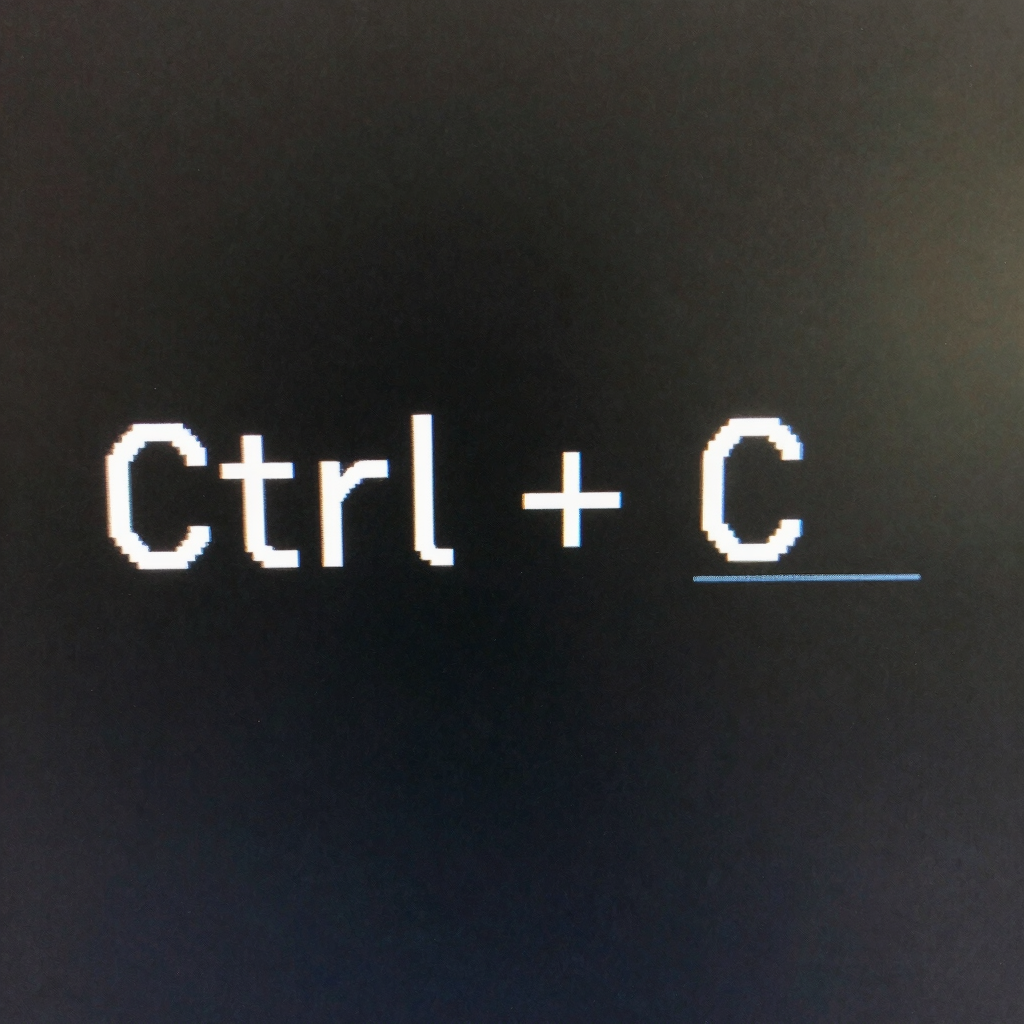
Ctrl + C — Copy selected text, file, or item
Ctrl + X — Cut (remove and copy) the selected item
Ctrl + V — Paste what you copied
Ctrl + Z — Undo your last action (a lifesaver!)
Ctrl + Y — Redo the action you just undid
Ctrl + A — Select all text or items in the current window
Ctrl + S — Save your work (get in the habit of using this often)
Alt + F4 — Close the current window or app
Ctrl + Shift + Esc — Open Task Manager directly (great when something freezes)
Pro tip: For clean pasting without unwanted formatting (like when copying from a website into an email), try Ctrl + Shift + V.
Navigation & Multitasking Shortcuts
Stop clicking around—switch and organize like a pro:
Alt + Tab — Switch quickly between open apps and windows (hold Alt and tap Tab)
Windows key + Tab — Open Task View to see all windows and virtual desktops
Windows key + D — Show or hide the desktop (perfect for quickly checking your background photo of the Cape Cod shoreline)
Windows key + E — Open File Explorer instantly
Windows key + L — Lock your computer (essential for security when you step away)
Alt + F4 (again!) — Close the active window
Windows Key Magic (The Power User Favorites)
The Windows key (usually between Ctrl and Alt, with the Windows logo) is your best friend for system-wide shortcuts:
Windows key + A — Open Action Center / Quick Settings
Windows key + I — Open Settings app
Windows key + R — Open the Run dialog (handy for advanced tweaks)
Windows key + V — Open Clipboard history (see everything you’ve copied recently)
Windows key + Shift + S — Take a screenshot of part of your screen
Windows key + . (period) — Open the emoji keyboard (fun for emails and chats)
Windows key + M — Minimize all windows
Windows key + P — Switch display modes (great for connecting a second monitor or projector)
Window Management & Snapping
Windows 11 makes arranging windows easier than ever:
Windows key + Up Arrow — Maximize the current window
Windows key + Down Arrow — Minimize or restore the window
Windows key + Left/Right Arrow — Snap window to the left or right half of the screen
Windows key + Z — Show Snap Layouts (choose how to arrange multiple windows)
For multiple monitors or virtual desktops:
Windows key + Ctrl + D — Create a new virtual desktop
Windows key + Ctrl + Left/Right Arrow — Switch between virtual desktops
File Explorer & Text Editing Shortcuts
When working with files and documents:
F2 — Rename the selected file or folder
Ctrl + Shift + N — Create a new folder
Ctrl + Right/Left Arrow — Move the cursor one word at a time (much faster than arrow keys alone)
Ctrl + Backspace — Delete the word to the left of the cursor
Bonus Tips from the Cape Cod Tech Care Team
Build the habit slowly — Start with 5 shortcuts you use every day (like Copy/Paste, Alt+Tab, and Win+E). Once they feel natural, add more.
Clipboard History is underrated — Press Win + V after enabling it in Settings > System > Clipboard. It remembers multiple items you’ve copied.
Stuck? Use Ctrl + Shift + Esc to open Task Manager and close frozen apps without restarting.
Security first — Get used to Win + L every time you walk away from your desk.
These shortcuts work on most Windows PCs, including laptops and desktops we service here on the Cape. If you’re running an older version or have a specific setup (like a work laptop with restrictions), some may behave slightly differently.
— The Cape Cod Tech Care Team
Contact
Reach out anytime for tech support.
© 2026. All rights reserved.


Monday Through Friday: 5:00PM - 7:00PM
Saturday: 9:00AM - 5:00PM
Sunday: 9:00AM - 5:00PM
Service Hours
Cape Cod Tech Care | Falmouth, MA 02536 | 508-281-9850 | tim@capecodtechcare.com